Manage Shippets
You can easily manage snippets from app homepage. To add a new snippet, click on Add a Code Snippet from the menu. A screen like below will appear.
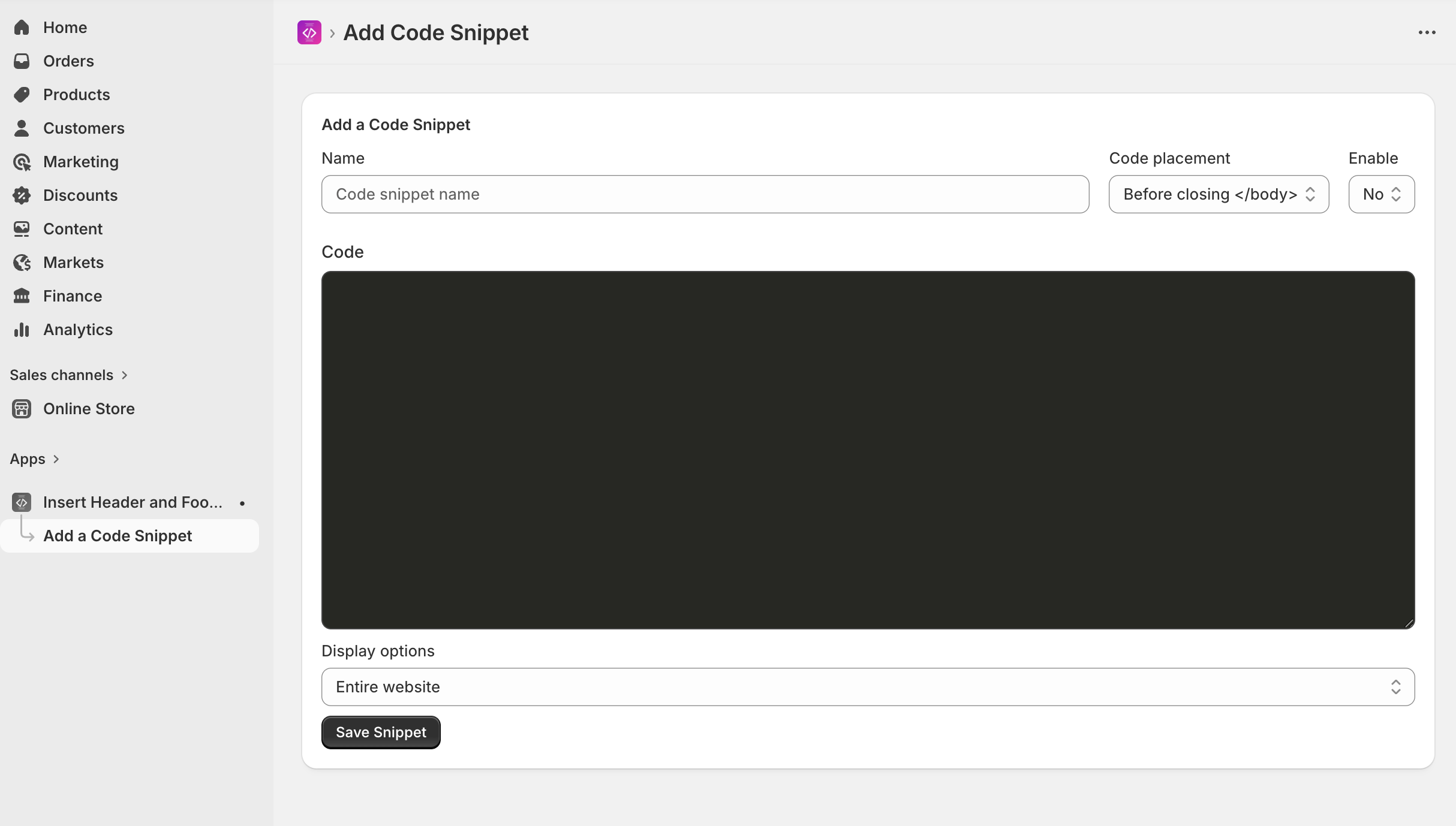
Add a name so you can identify. Select placement like if it will go to head or body part of website. Make sure you selected yes on enable. This make sure you can save snippets without enabling.
Add your snippet code like live chat code, custom CSS, JS on code area. Syntax highlighter is enabled here so you can see a beautiful code snippet.
You can target on which page it will display. You can also select Entire website, Selected product, collection or specific pages.
After adding snippet, it will display on your targeted pages.
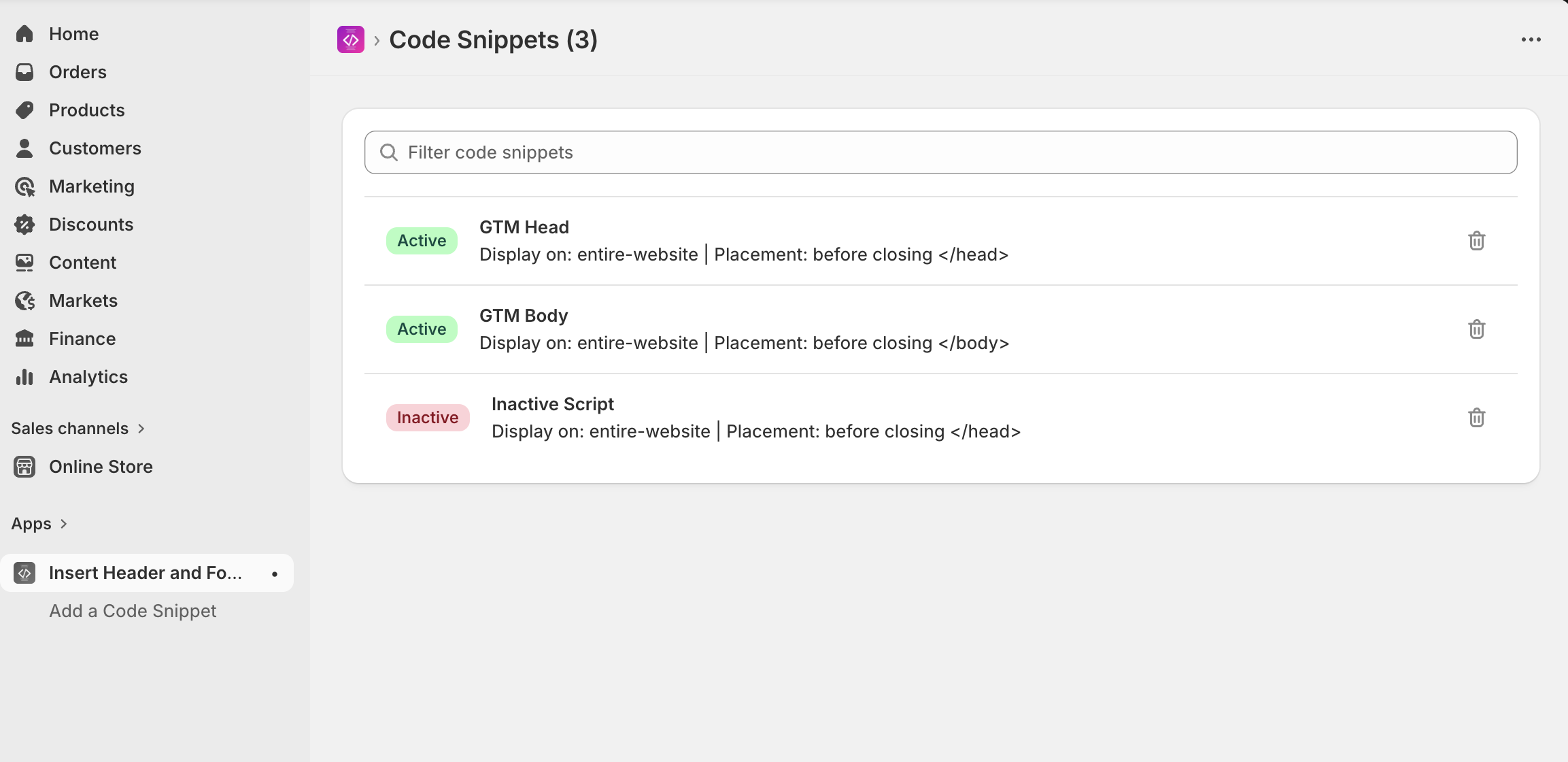
You can also manage all of your snippets here. Clicking on active or inactive makes it active or inactive. If you wish to delete a snippet, click the delete button.
How did you feel?
Didn't find what you're looking for?
Our support team is here to help. Open a ticket and we'll get back to you.
Open a support ticket